Python PDF guide
Convert PDF to Markdown in Python: A Practical Guide
For a repeatable PDF to Markdown Python workflow, use a document-aware library, write the result as UTF-8, and review the parts that layout extraction cannot guarantee. This guide starts with a short PyMuPDF4LLM example, then covers scanned pages, batches, embedded images, and a simple quality check.
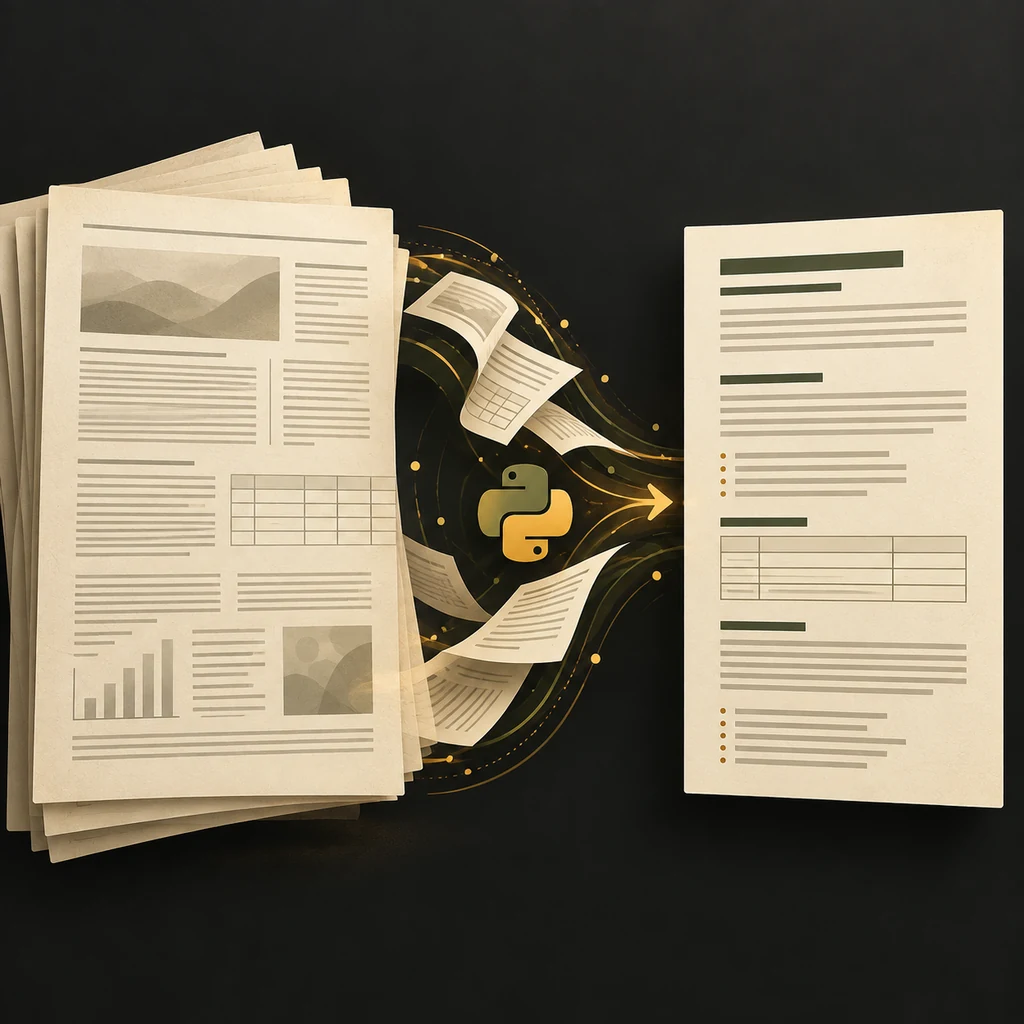
Choose a Python PDF to Markdown approach
Choose around the PDF layouts and file types you actually have. For PDF-focused Python work, PyMuPDF4LLM is a practical first package to evaluate: it can return Markdown, JSON, or text, and offers layout, page-chunk, OCR, and image options. If your input queue also includes Word, PowerPoint, Excel, and other formats, compare Microsoft's MarkItDown project. Its maintainers describe it as an LLM-oriented converter and caution that the output may not suit high-fidelity human conversion. A browser converter is simpler for an occasional file; a hosted API fits a backend workflow but adds file-transfer and service controls. Compare representative documents before choosing.
| Method | Good fit | Trade-off to plan for |
|---|---|---|
| PyMuPDF4LLM | PDF-focused Python extraction with Markdown, JSON/text, layout, page-chunk, OCR, and image options | Review output on your PDFs; the repository declares AGPL-3.0, so check the current license for your distribution. |
| Microsoft MarkItDown | Mixed-format Markdown workflows that include PDF, Office files, images, and other inputs | Useful for broad ingestion; its maintainers caution that output may not be ideal for high-fidelity human conversion. |
| Browser converter | A one-off conversion without a local Python environment | Less suitable for scheduled batch jobs or custom pipeline control. |
| Hosted conversion API | An application that already runs a backend service | Review credentials, upload/retention behavior, network errors, and retries. |
Convert one PDF to Markdown with Python
PyMuPDF4LLM provides a direct to_markdown() call. The method returns Markdown text, so a small script can decide where the output goes and how to name it. Install the package in the environment that will run the script, then begin with one representative PDF rather than a whole archive. The basic example below uses the package name and method shown in the project documentation.
import pymupdf4llm
from pathlib import Path

source = Path("report.pdf")
markdown = pymupdf4llm.to_markdown(str(source))
output = source.with_suffix(".md")
output.write_text(markdown, encoding="utf-8")

print("Saved", output)
Install the library and save the Markdown file
Use an isolated virtual environment when the conversion script is part of a project, so its PDF dependencies do not unexpectedly affect other Python work. The documented package install command is pip install pymupdf4llm. Once installed, the example writes beside the source PDF and explicitly uses UTF-8, which avoids relying on the machine’s default text encoding. If your application accepts files from users, validate the extension and size before parsing, choose an output directory deliberately, and avoid placing generated files in a public web directory by accident.
A useful first run is intentionally small: convert one file, open the .md output in a plain-text editor, and compare it with the PDF. This tells you whether the library’s defaults are suitable before you build a batch job around them. The exact package options can change, so check the current official API reference before depending on optional arguments in a long-lived pipeline.
Handle scanned PDFs and OCR deliberately
PyMuPDF4LLM checks pages and uses OCR automatically when it detects that recognition is needed. The official documentation checked on 2026-10-02 describes Tesseract and RapidOCR adapters. Make sure an OCR engine is available in the same environment that runs Python; Tesseract also needs the language data for the document. If a scan returns little text, first check the installed package version, engine, and language data. Use force_ocr=True only when the native text layer is corrupt or automatic detection missed a page: it bypasses the normal check and forces OCR, which can slow clean digital pages and reduce their quality. Review names, identifiers, totals, and mixed-language text against the scan.
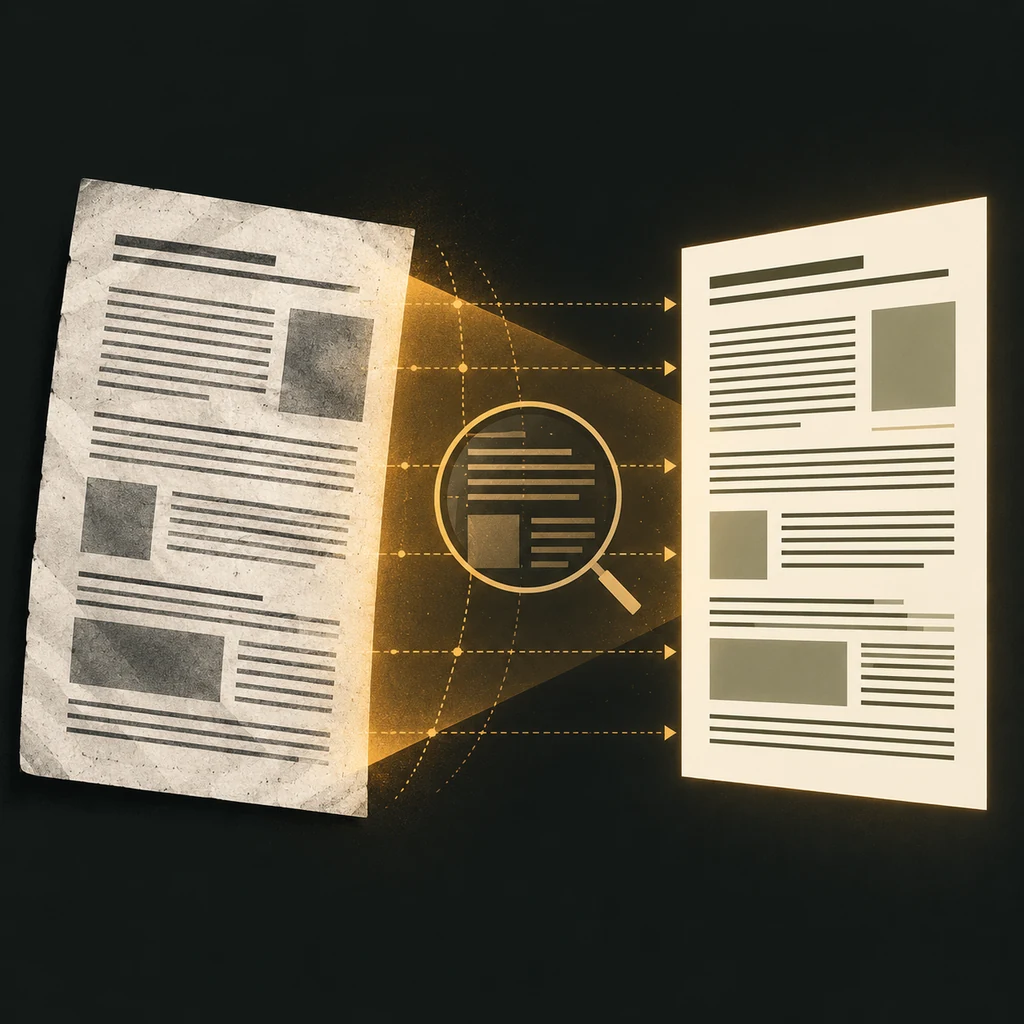
import pymupdf4llm

# OCR runs automatically when the installed engine detects that a page needs it.
markdown = pymupdf4llm.to_markdown("scanned-report.pdf")

# With Tesseract, choose language data installed in the environment.
markdown = pymupdf4llm.to_markdown(
    "scanned-report.pdf",
    ocr_language="eng+chi_sim",
)
Process multiple PDFs with predictable paths
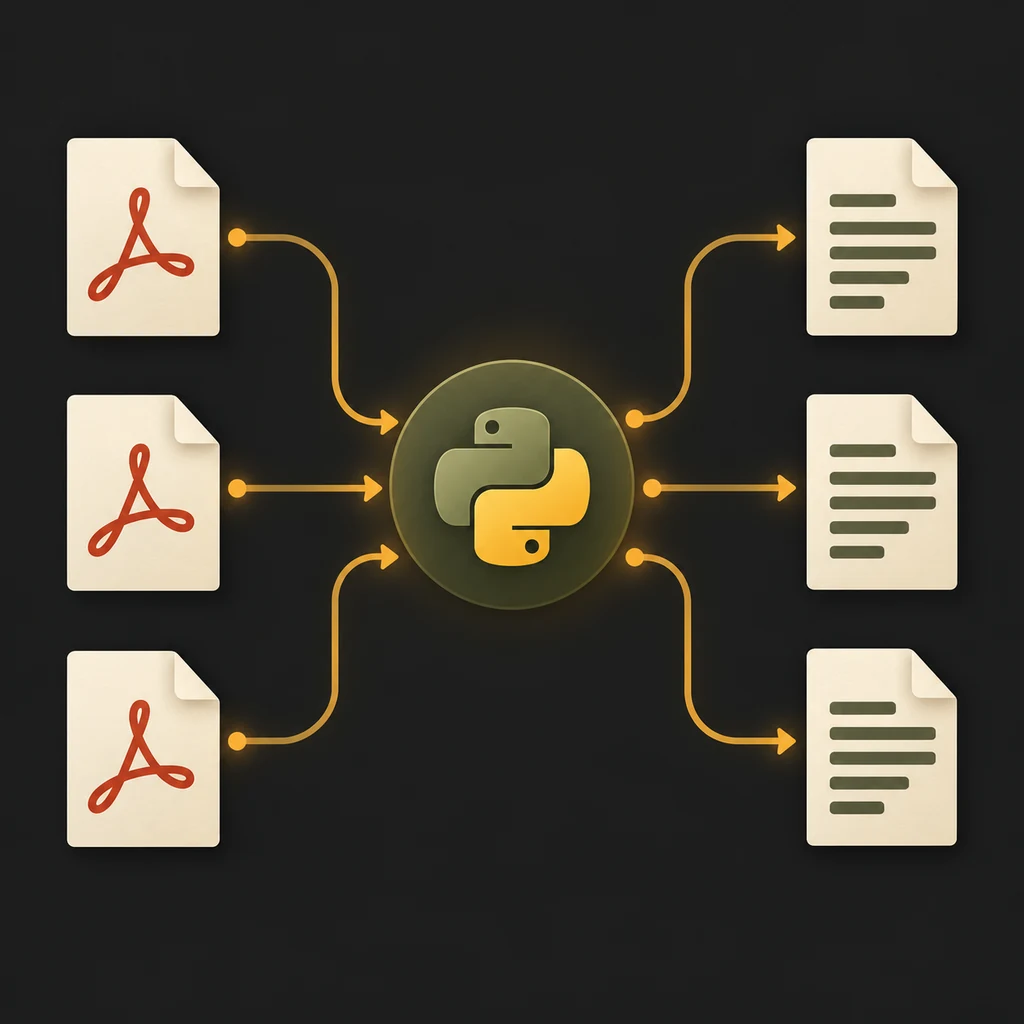
Batch conversion is mostly a file-management problem. Keep source files separate from output files, create the destination folder before the loop, and derive each Markdown filename from the PDF stem. Catch errors per file so one damaged or password-protected PDF does not silently stop the entire folder. Record failures in a log that an operator can inspect; do not silently mark the batch as complete. For large jobs, add bounded concurrency only after measuring memory use and the converter’s documented behavior.
The example below handles the top level of one input folder. If documents are nested, use rglob("*.pdf") and preserve relative paths so two files named report.pdf do not overwrite each other. If conversion is a recurring backend workload rather than a local script, compare this approach with a job-based API and its authentication, retry, and retention model.
from pathlib import Path
import logging
import pymupdf4llm

source_dir = Path("pdfs")
output_dir = Path("markdown")
output_dir.mkdir(parents=True, exist_ok=True)
logging.basicConfig(
    filename=output_dir / "conversion.log",
    level=logging.ERROR,
    format="%(asctime)s %(levelname)s %(message)s",
)

for pdf_path in sorted(source_dir.glob("*.pdf")):
    try:
        markdown = pymupdf4llm.to_markdown(str(pdf_path))
        target = output_dir / (pdf_path.stem + ".md")
        target.write_text(markdown, encoding="utf-8")
    except Exception:
        logging.exception("Could not convert %s", pdf_path.name)
Keep images and tables useful in Markdown
Plain Markdown can represent headings, lists, links, and many simple tables. More complex tables, charts, equations, and page artwork may need a different representation or a separate image asset. If your output depends on extracted images, review the current documented options for write_images, image paths, and formats; keep those files alongside the Markdown and verify that generated references resolve from the place where the .md file will be read. Do not assume that every figure can be converted into descriptive text or that visual layout survives as-is.
For a knowledge base, preserve enough context for a reader to trace an important passage back to its source page. Page-separated output or metadata may be useful, but choose based on the retriever and citation behavior you need. For a browser-based workflow focused on exported images and tables, see the PDF to Markdown images and tables guide. The existing PDF to Markdown for RAG guide covers chunking and retrieval preparation; this tutorial stays focused on the Python extraction step.
markdown = pymupdf4llm.to_markdown(
    "report.pdf",
    write_images=True,
    image_path="output_assets",
    image_format="png",
)
Diagnose common Python PDF to Markdown failures
If Python cannot import the package, first check which interpreter runs the script. Run python -m pip show pymupdf4llm from that same environment; a notebook, terminal, or scheduled job may use a different interpreter. A FileNotFoundError often means a relative path is being resolved from an unexpected working directory. Print source.resolve() while debugging or test with an absolute path.
If a scanned PDF produces little text, confirm that an OCR engine and the needed language data are installed in the environment. Keep force_ocr=True for pages whose text layer is missing or unreliable; clean digital pages usually do not need forced OCR. When the Markdown points to missing images, keep the exported asset directory with the .md file and check the relative paths.
For a batch job, record a success or failure for every input and save the exception details to a log. A generated file only proves that the parser returned something. It does not prove that every page, table, or recognized value is correct.
Review the Markdown before you rely on it
A successful function call only means the parser returned output. It does not prove that the document’s structure was reconstructed correctly. Before indexing, publishing, or extracting business facts, compare a few pages against the source PDF. Include an opening page, a page with columns, a table page, a page with footnotes or repeated headers, and a scanned page if your corpus contains scans. Fix the extraction configuration or route difficult files to another method when the output fails your requirements.
| Check | What to compare | Why it matters |
|---|---|---|
| Headings and lists | Compare hierarchy, numbering, and list nesting | Wrong levels make long Markdown hard to scan |
| Reading order | Check columns, sidebars, footnotes, and page transitions | Misordered text can change a sentence’s meaning |
| Tables and figures | Verify rows, captions, image references, and symbols | Broken structure can misstate values or remove evidence |
| OCR text | Check names, dates, quantities, and uncommon terms | Recognition errors can flow into search or summaries |
| File handling | Confirm output count, filenames, encoding, and logged failures | A partial batch should not look complete |
Know what a PDF to Markdown converter cannot guarantee
PDF records where content is drawn on a page; it does not always contain the semantic structure that Markdown needs. A two-column paper, a form, an engineering drawing, and a clean text report are different extraction problems. Layout-aware software can make useful guesses, but output should be judged against the pages and the downstream task. If the document contains tables, formulas, or diagrams that must remain exact, keep the source PDF and use page references or separate assets alongside the Markdown.
Processing locally can keep the file inside the environment you control, but security also depends on dependencies, storage paths, logs, backups, and process isolation. Microsoft's MarkItDown documentation notes that conversion runs with the current process's access; isolate jobs and narrow file access when processing untrusted documents. The PyMuPDF4LLM repository declares AGPL-3.0; review the current license and dependency terms before distributing a product that uses it. A hosted API may reduce the work of managing a parser while requiring you to review upload and retention terms. For a managed workflow, see the PDF to Markdown API guide; for a quick selectable-text preview, return to the online PDF to Markdown converter.
PDF to Markdown Python questions
What is a practical Python library for PDF to Markdown conversion?
PyMuPDF4LLM is one practical option when you want a local Python call that returns Markdown. Start with one representative document, then compare headings, reading order, tables, images, and scans with your requirements. Other libraries and hosted services may fit different layouts or operational constraints.
How do I convert a scanned PDF to Markdown in Python?
PyMuPDF4LLM can run OCR automatically when an OCR engine is available and the page needs recognition. Install the engine and language data for your environment; with Tesseract, set a suitable language when necessary. Use force_ocr only if automatic detection missed a page or its text layer is unreliable, then review the output against the scan.
Can Python keep PDF tables and images in Markdown?
Some tools can rebuild simple tables or write extracted image assets, but results vary by layout. Check the table and image options for the library version you install, keep any asset directory with the Markdown file, and inspect complex pages manually.
How can I batch convert PDFs to Markdown with Python?
Iterate over a known input folder, create a separate output directory, use each PDF filename stem for its Markdown file, and handle exceptions per file. For recursive folders, preserve relative paths so files with the same name do not overwrite one another.
Should I use a Python library or a PDF to Markdown API?
Choose a local library when you need direct control over files and can maintain dependencies. An API may fit a server workflow that already needs authentication, job status, and managed processing. Compare upload, retention, retries, operational cost, and output quality for your documents before choosing.
Does a successful conversion mean the Markdown is accurate?
No. A successful call confirms that output was produced, not that columns, tables, figures, or OCR were reconstructed correctly. Sample pages from each document type and keep the source PDF available for verification.
How do I convert a PDF to Markdown in Python?
Call pymupdf4llm.to_markdown() on the source file, write the returned string with UTF-8 encoding, and compare the result with representative PDF pages before automating the workflow.
A reliable starting workflow
For a local script, install the documented package, convert one file, write the result as UTF-8, and compare it with the source. Add OCR, batch handling, and image extraction only when the document set needs them. Keep failed-file logs, and check output before using it for search or decisions. If you do not need a repeatable Python workflow, use the browser PDF to Markdown converter; for managed jobs, see the PDF conversion API guide.